

Here’s the hard truth:
If you want your first job in cybersecurity, you need to know the basics of Linux.
That’s non-negotiable.
And no cybersecurity certificate will save you from it.
There are over 1,000 Linux commands, more than anyone can realistically learn.
The good news?
You don’t need to.
You don’t need to be a Linux wizard.
You need a small, job-relevant subset of commands.
The bad news?
Figuring out which ones to learn is hard, especially when you’re learning on your own.
I remember struggling in the terminal, running “advanced” commands while not even knowing how to list files in my current directory.
I want to help you avoid that.
Here are 5 Linux commands you’ll use constantly in your first cybersecurity role.
Let’s get to it.
If you’re new to Linux and don’t even know how to start it on your own computer, drop a comment below.
I’ll reply with a simple, beginner-friendly way to get started, no prior experience needed.
Top 5 commands
Is this everything you need to become an expert?
No.
But these commands give you something far more important than expertise: orientation.
They let you explore a Linux system on your own, files, processes, and the network, without feeling lost.
And that matters, because in cybersecurity, learning doesn’t happen by staring at a black screen.
It happens by trying things, breaking things, and understanding what you see.
This is where that starts.
Want to try these commands right now? Open my free Linux sandbox in your browser and follow along.
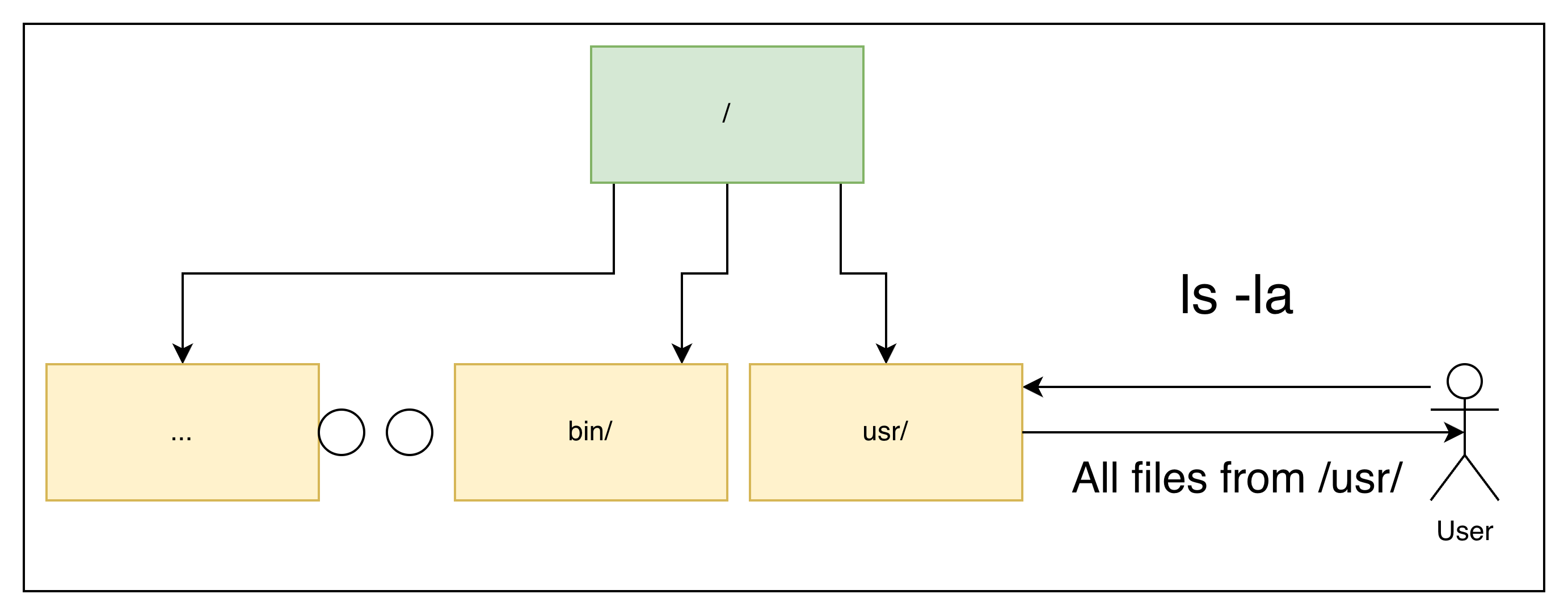
1. List files and directories
Command: ls
Purpose: Show what files and directories exist in a given location.
Useful arguments:
-l: Shows detailed information: permissions, owner, group, size, and timestamps.-a:Includes hidden files (those starting with.).-h:Displays file sizes in human-readable format (KB, MB, GB).-la:The most commonly used combination. Shows everything, with full details.
Example of usage: You enter a directory you don’t recognize and want to see everything inside it.
2. Change directories
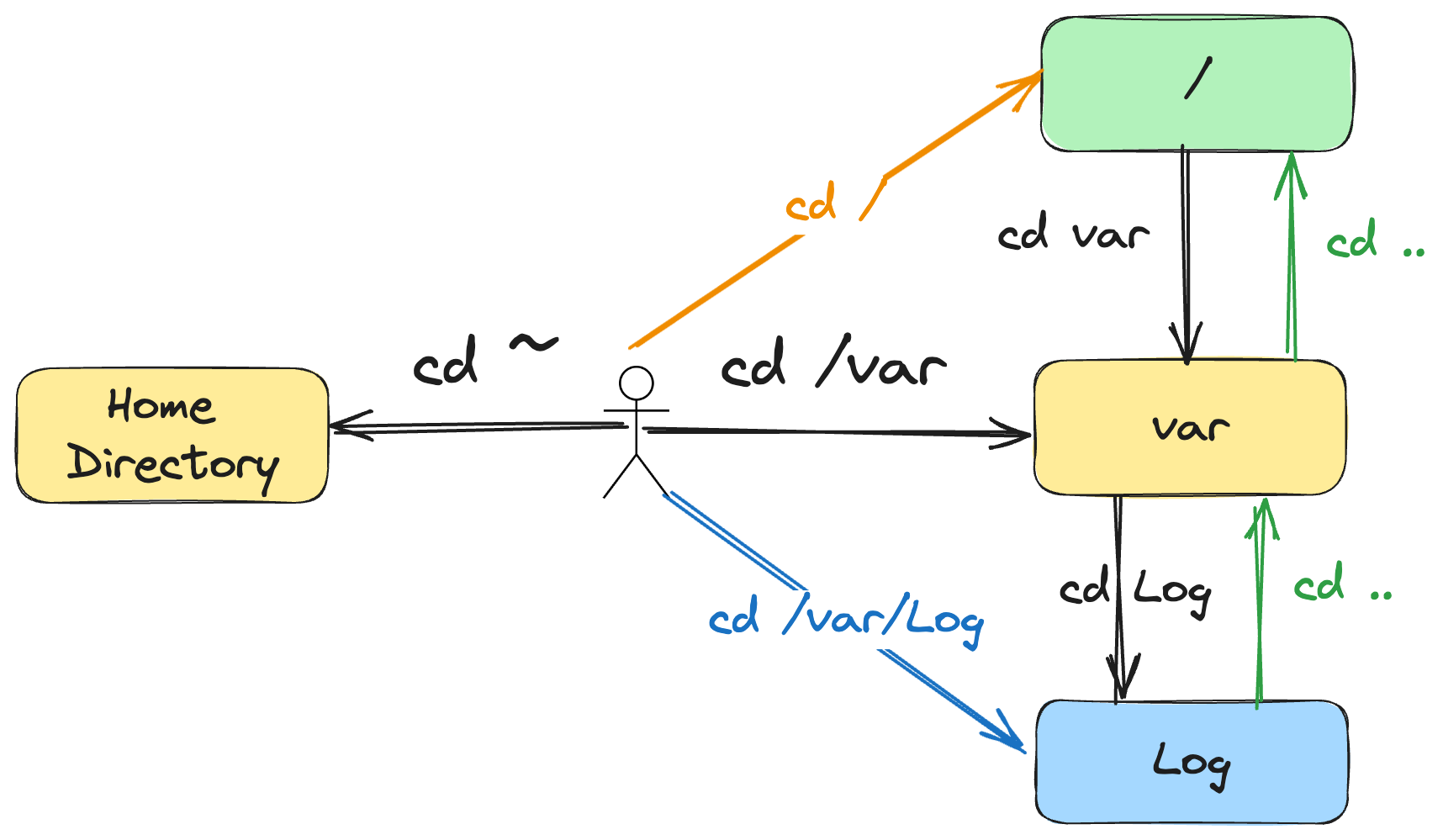
Command: cd
Purpose: Move between directories in the Linux filesystem.
Useful arguments:
cd /path/to/directoryMove directly to a specific location.
cd ..Move one directory up.
cd ~Jump to your home directory.
cd -Switch back to the previous directory.
When to use - example:
You need to check the log files located in “/var/log”.
cd /var/logThis moves you straight to the logs so you can continue your investigation. Then you can run the “ls” command to see all the files in the directory.
Do you want to learn more about Linux commands? Let me know in the comments!
3. Copy and move files
Commands: cp, mv
Purpose:
Copy or move files and directories.
Useful arguments:
cp (copy)
cp file1 file2
Copy a file to a new location or name.cp -r directory/ destination/
Copy directories recursively.
mv (move / rename)
mv file destination/
Move a file to a different directory.mv oldname newname
Rename a file.
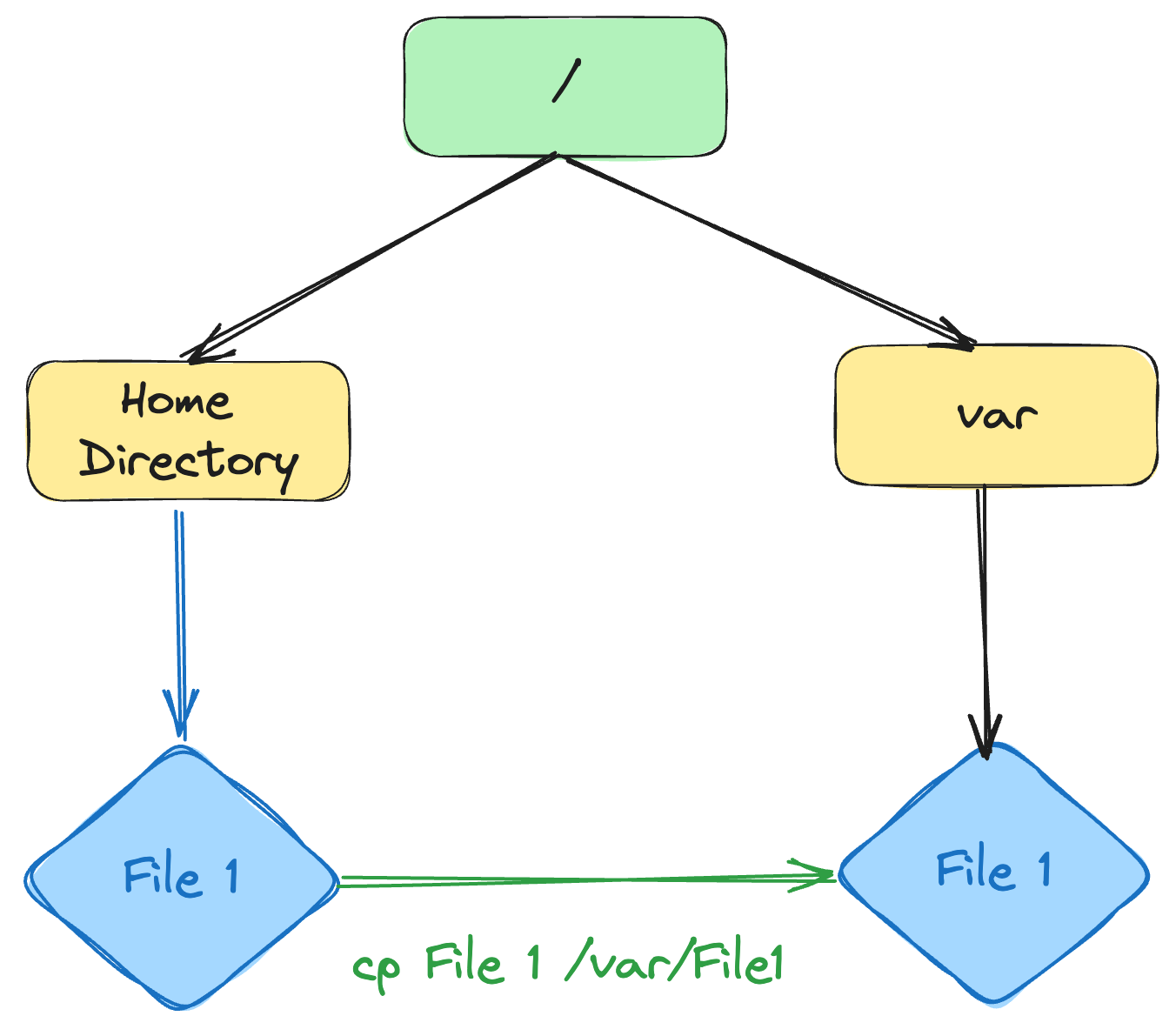
Example: Move a file to another directory
You’re in your home directory and want to move a file into a log-analysis folder.
mv suspicious.log /var/log/analysis/4. Delete files and directories
Command: rm
Purpose:
Delete files or directories from the system.
Useful arguments:
rm file.txt
Delete a single file.rm -i file.txt
Ask for confirmation before deleting — recommended for beginners.rm -r directory/
Delete a directory and its contents recursively.rm -f file.txt
Force deletion without prompts (dangerous if misused).
Warning: There is no built-in “undo” for
rm.
When to use – example:
You created a temporary copy of a file for testing and no longer need it.
rm -i test_copy.logPractice Linux in my free browser-based Linux sandbox.
No installation, no VM, no risk. Just a terminal and you.
5. View file contents
Command: cat
Purpose:
Display the contents of a file directly in the terminal.
In cybersecurity, this is how you quickly inspect logs, configs, and scripts.
Useful arguments:
cat file.txt
Show the full contents of a file.cat -n file.txt
Display line numbers — helpful when reviewing scripts or configs.cat file1 file2
View multiple files in sequence.
Warning: Use only for small files
When to use – example:
You copied a configuration file and want to quickly check what’s inside.
cat -n sshd_configDo you want to learn how to set up a test environment in Docker in under 5 minutes?
Comment “Docker” and I will point you in the right direction.
What now?
If you know how to use these commands, you’re no longer “bad at Linux.”
This is how you start.
You can:
See what files are in the directory
Move between directories
Copy and move files safely
Read short configuration files
That’s enough to start learning for real.
Linux commands aren’t something you can memorize.
You need to practice.
That’s how you get better.
If you want help setting up a safe practice environment or learning what to explore next, comment “Linux”!
I’ll point you in the right direction.
Let’s connect
If you want to collaborate, discuss, or just geek out over virtualization and cloud security, reach out to me:
Email: erich.winkler@decodedsecurity.com
LinkedIn: Erich Winkler
Gumroad community: Decoded Security
Enjoyed this article? Like it or drop a comment. I’d love to hear your thoughts and questions!
Let’s learn and grow together!
Cool one
Docker